
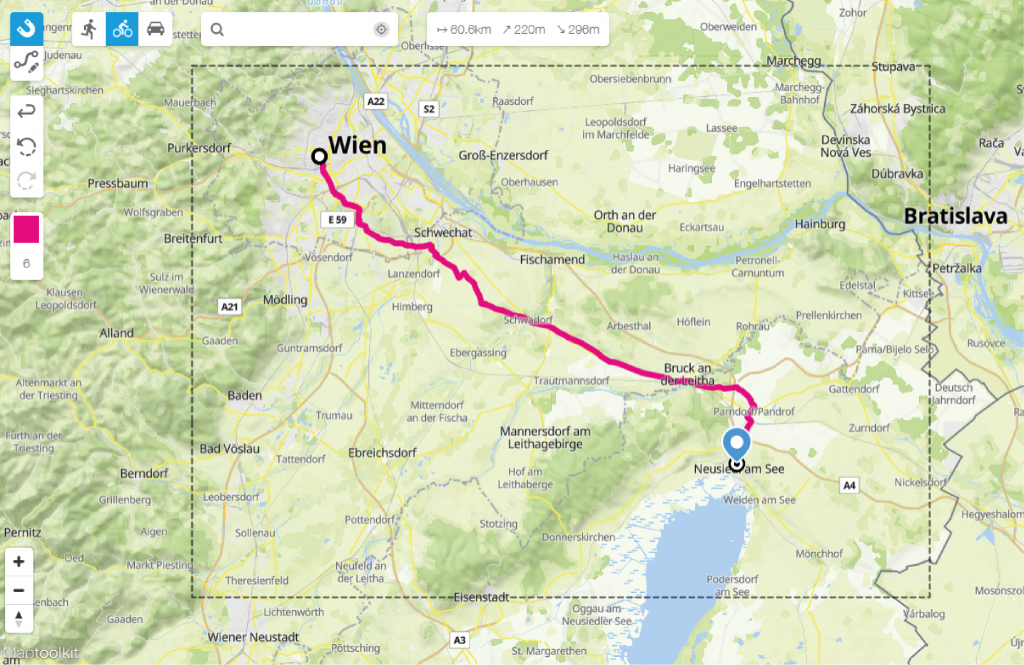
Our route map maker helps you map a route within seconds. By using the route editor you can draw a route from A to B wherever you like on the world map. Select if you want to draw the route on roads to hike, bike or drive.
Map a route on existing roads
Our clients draw routes with the Printmaps route map maker to showcase biking and hiking routes for tourist guides or simply to show directions. Points of interest, or short POIs, are places usually indicated by a marker on the map. In tourism, POIs are vital, as they show tourists where sights, gastronomy or lodgings can be found.
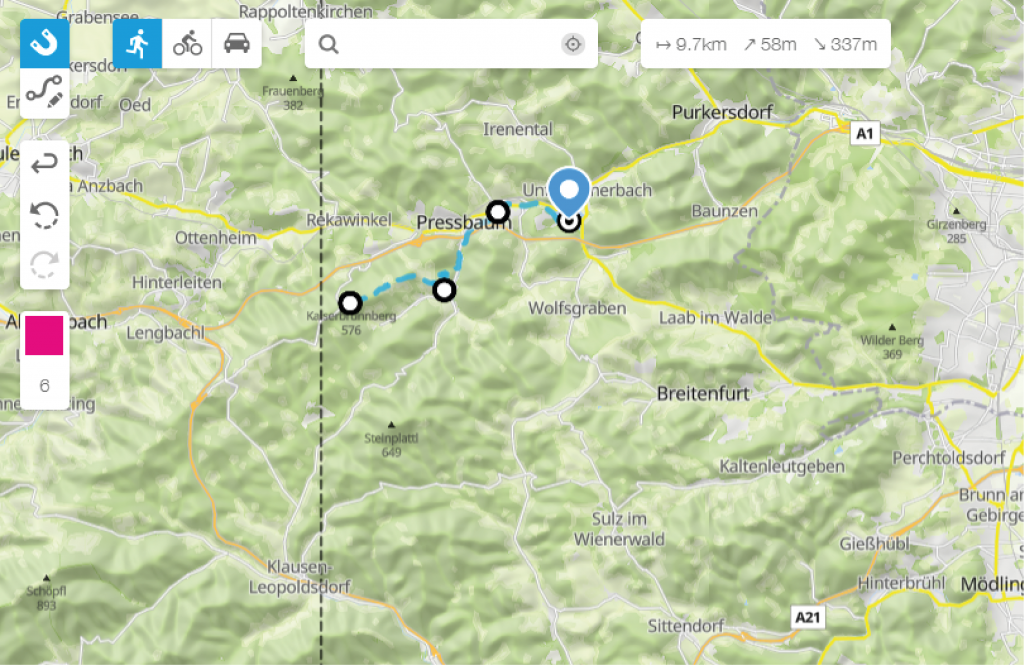
Pick the colour and thickness of the line, or upload your own previous recorded route. Our route editor not only lets you draw your routes free-hand, it also utilizes a wizard that magnetically snaps to existing roads. This way you create an exact route map.
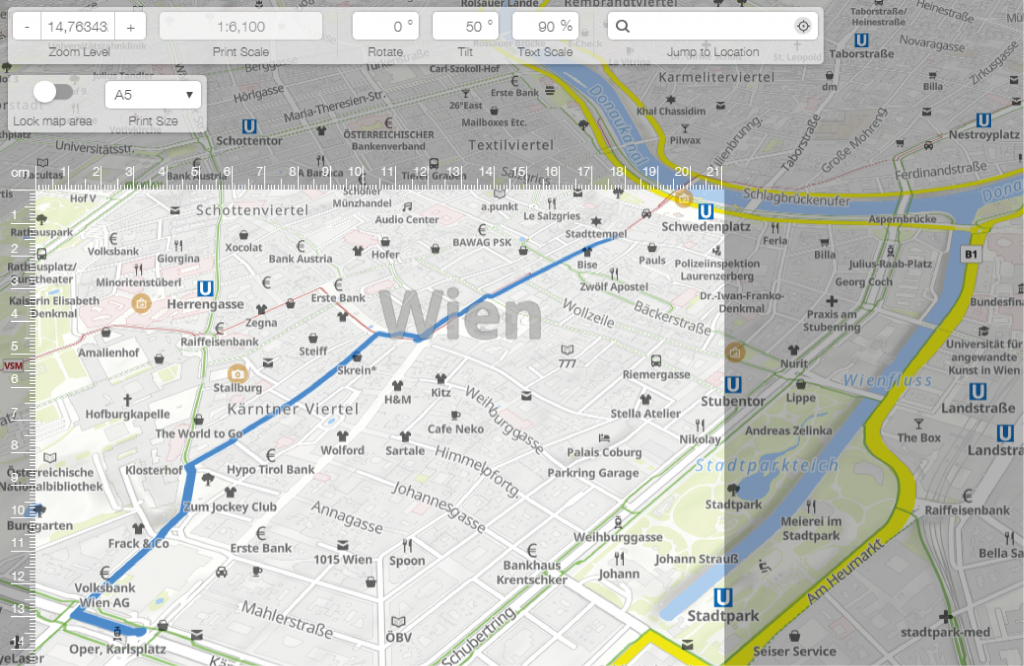
Upload your own Geo-data
Is your route recorded with a GPS-enabled device? You can upload these files (GPX, KML, GeoJSON) to the editor and they will be displayed on your map. Another great thing about it: you can upload as many routes as you want – and can fit on your map. A great feature to, for instance, display a bike tour!
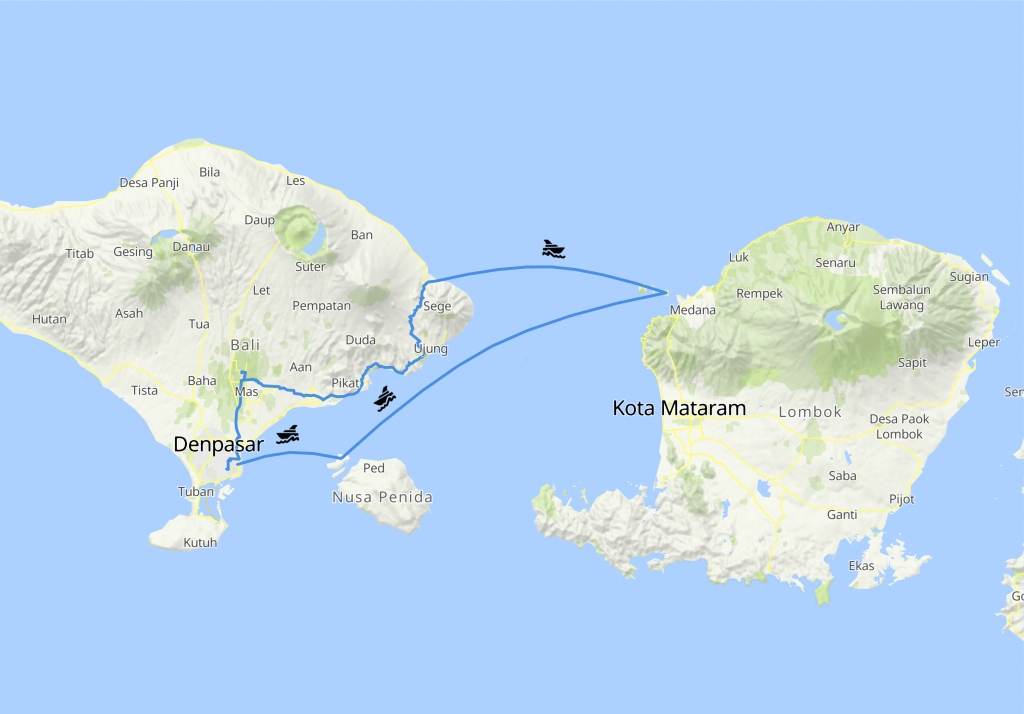
Combine different travel modes on one route map
Mapping a route has never been so easy. In the editor you can combine different travel modes and draw a route by car, ship or train.
Map a route within seconds
Apart from the many other features Printmaps offers, we also have a built-in geocoder that allows you to batch-upload and convert your addresses to their respective coordinates. It really is as easy as copying and then pasting data from a spreadsheet or a database column. Just click this Button in the editor:  and you’ll have a familiar sight right in front of you. All you need to do is paste your content into the respective fields, and Printmaps will do the rest.
Once our geocoding engine has converted the addresses to their respective coordinates, you can go ahead and change the type of marker, the colour, icon or their size. All POIs will be saved in a separate layer, so once you’ve downloaded your map in Photoshop format, you can open it up and fine-tune the positioning of your POIs.
Download your route map with layers
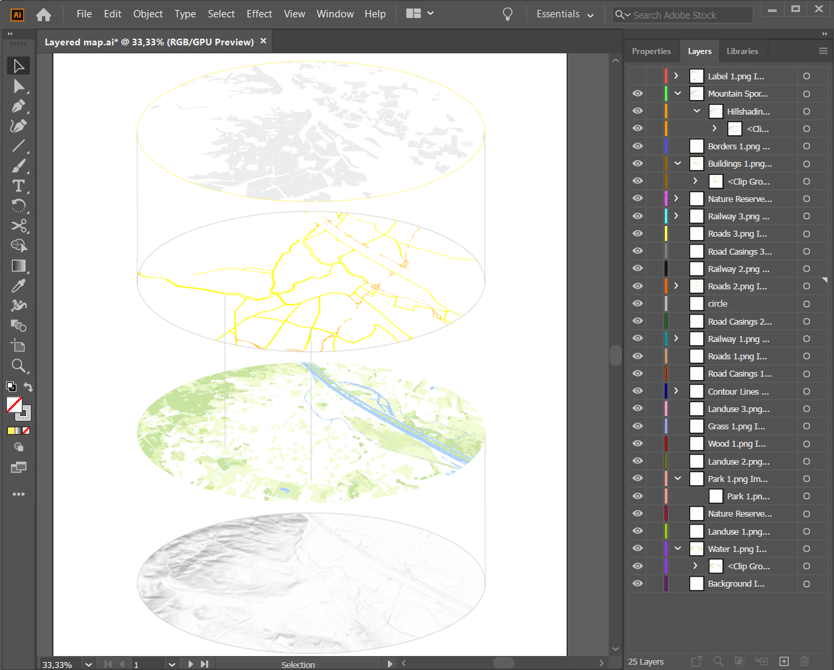
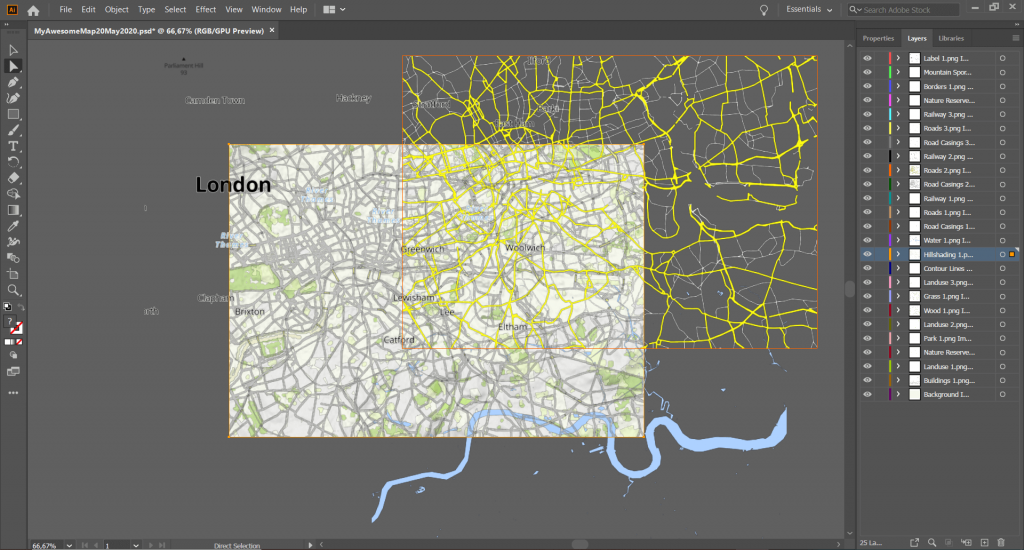
Download your route map as a layered PSD or SVG file, and open this file in Photoshop or Illustrator. This way you can still easily adjust which layers you would like to be visible on your map and where exactly you would like to place them. Remove, move or add text, change colours and show or hide layers. The options are endless and which ones are beneficial for you highly depends on your own specific project.
It is what you make of it
Creating printable maps for a publication is not only a matter of having the right geo-tools, it’s also about using your own designs or ideas. With Printmaps, you get full flexibility, whether it’s the type of cartography used or the kinds of features included in your map. And once you’ve created and downloaded your map, it doesn’t just end there. Do you want to add more details to POIs, add your own logos, more graphics or some text? That’s why we create your map in a layered PSD format, allowing you to change virtually anything you added to your map, down to single POIs. So why not just try our editor and see how you can transform your ideas into your ideal map fit for publishing?
Try Printmaps
Our map-editor lets you create printable maps worldwide in no time.
Upload your GPX (or KML/GeoJSON) in the Printmaps editor, style the line, add POIs if needed, then download a high-resolution PSD, SVG, or PNG for print.
Yes. You can draw straight lines or arched lines between on the map by simply clicking on the map in the route tool.
We offer our Maps as PNGs, PSDs, and SVGs. All file formats are suitable for professional printing, but PSDs/SVGs keep editable layers for precise post-processing.
PNGs and PSDs come with 300 dpi resolution, while SVGs are scalable to any size.
Yes, you can upload as many routes as you like. Just avoid making the map too cluttered and still readable.
For either, you can export the route as a GPX and insert it into our map editor. For Komoot, you can log in to your account in the editor and access your saved routes, which is described further in this article.
Yes. Each element that you can see on the map is stored in a seperate layer if you choose to purchase a PSD or SVG. That goes for Map elements, such as roads, bodies of water or elevation, as well as each element that you add to your map, such as routes, pins or shapes.
Absolutely. You can choose your desired color via click or hexcode, define the route thickness, and choose to hide or display the mode of transport used to travel the route.
You can create a free elevation profile to accompany your map in our elevation profile maker. You can upload your route as a GPX, KML or GeoJSON and will receive the output as a PNG, PDF, and SVG and can personalize it beforehand.


