
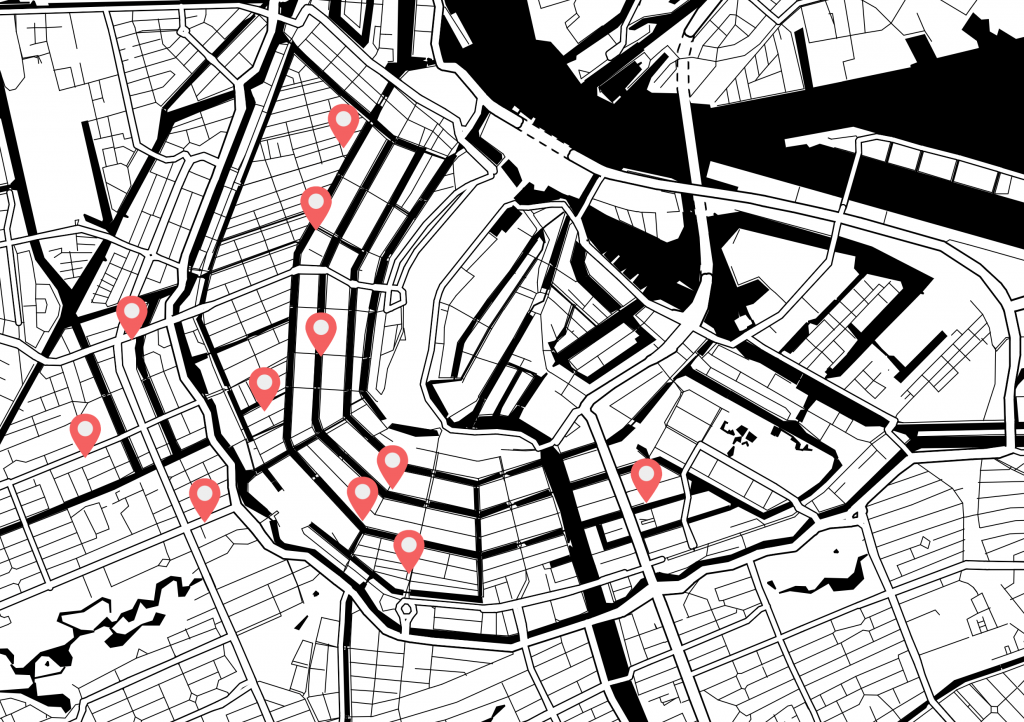
Marking points of interests to create a map with pins can be time-consuming and the result sometimes disappointing. Editing screenshots provides issues with preserving the quality of the image when using it on the web or in print. Meanwhile, you just want to effortlessly pin those point of interests on their exact location, show the chronological order of a route and specify the pins with suitable markers and labels.
The Printmaps editor makes it all possible.
Mark your business locations on the map with pins
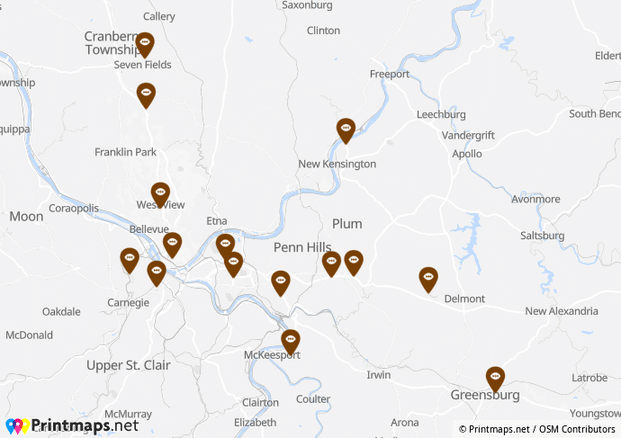
The editor is very useful for businesses who want to pin multiple locations or stores on a high-resolution map to be printed or used online. The editor makes it possible to copy the postal addresses into a bulk-geocoding uploader and they will all be converted to their geographical coordinates. This way the business locations show on the map with your own, customized or one of the standard labeled markers.
Mark routes on existing roads
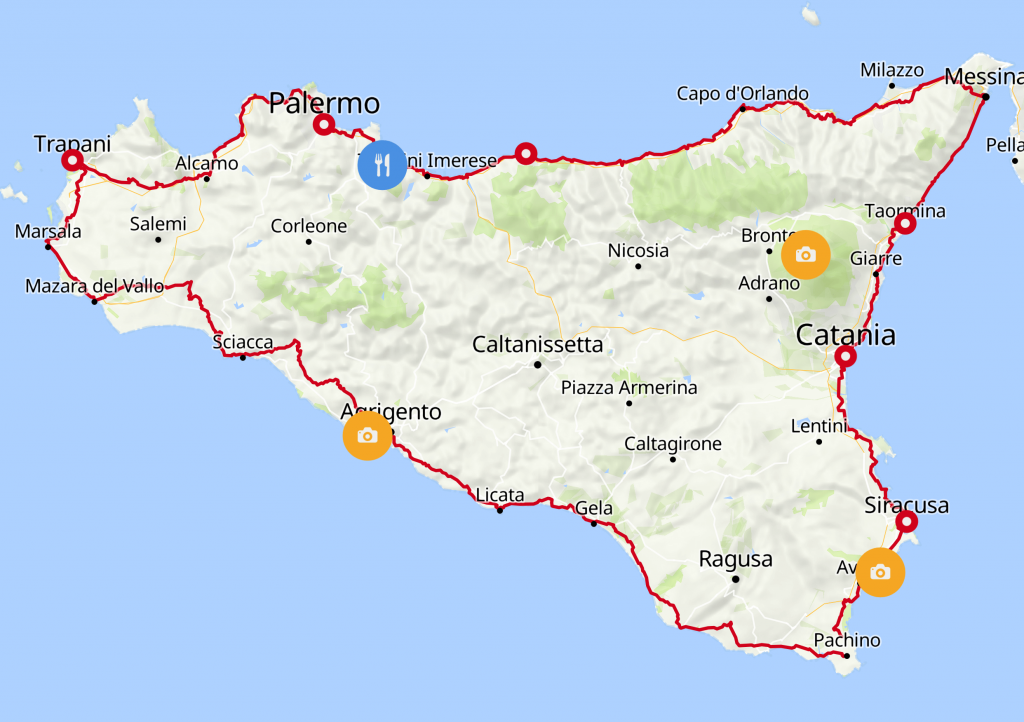
Our customers create route maps with pins to showcase hikes or bike routes, or simply directions. Easily draw lines on the existing roads, biking and walking paths. With the option to pin the point of interests with numbers, it becomes easy to show the direction of the route.
Read more about how the editor works and its features.
Create a travel map for your photobook
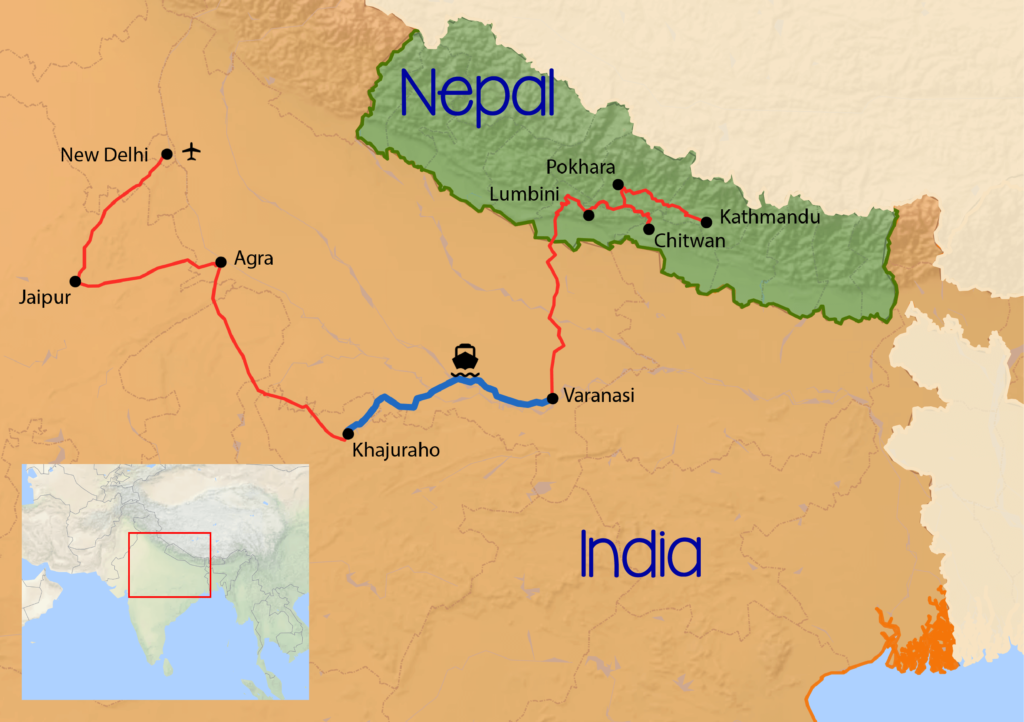
Mark the exact locations you visited during that unforgettable travel. You can mark your points of interest with dots, squares or any of the standard shapes provided in the editor, or display the label without a surrounding marker, like an airplane or a ferry. Mark your favorite restaurants, hikes or beaches. With the different map styles and the option to add coloured country shapes, you can easily create your own customized travel map for your photobook.
Still need help? Send us a note!
FAQ
Yes. You can paste decimal Longitude and Latitude values directly into the spreadsheet importer. Each element becomes a separate, named layer in the download if downloaded as an SVG or PSD.
Yes, you can. We offer a range of different shapes to choose from for the outer shape as well as the inner shape and colors for each can be specified freely. Among the inner shapes, there are many icons that you may want to display on the map to show the theme of the place of interest you are highlighting. For example: a shopping basket to highlight a grocery store, a running stick figure to display a sports center, etc.
Yes. You can upload GPX / KML / GeoJSON files into our editor. Those files can contain routes, pins, or shapes and will be imported into the map instantly. Each of those elements can be styled after being imported as manually added pins can.
Yes. You can adjust the level of tilt or rotation at the top left of the editor as you please. However, if done so, the map will not be available for purchase as an SVG due to technical limitations.
PNGs suffice for web and print if there is no need for a lot of post-processing and, in the case of print, you don’t want to print a size larger than 22 cm x 22 cm. If you want to personalize your map fully or want to print at a larger size, PSDs and SVGs are a better fit.
Yes. To do that, you can simply make the color of the outer and inner pin shape transparent.


Recent Comments